ConnectYourGPT is an independent service. It is not affiliated with OpenAI, Anthropic or Meta: it works with Claude, ChatGPT Plus and WhatsApp.Independent service: not affiliated with OpenAI, Anthropic or Meta.

ConnectYourGPT / Install in ChatGPT

Send WhatsApp from ChatGPT Plus, step by step.

As far as we know, ChatGPT doesn’t come with a way to send WhatsApp messages from your number; with Connect­Your­GPT it can, and it can’t read your chats. You do it once, from chatgpt.com in your browser. We tested it end to end on ChatGPT Plus: after that, in a chat, you call it with @ConnectYourGPT, ask it to write to someone and the message goes out from your WhatsApp.

Connector addresshttps://api.connectyourgpt.com/mcp
Name: ConnectYourGPT
Create account

349 MXN a month · cancel anytime. Already have an account? Sign in.

In motion

How it connects and what you get.

How it connects

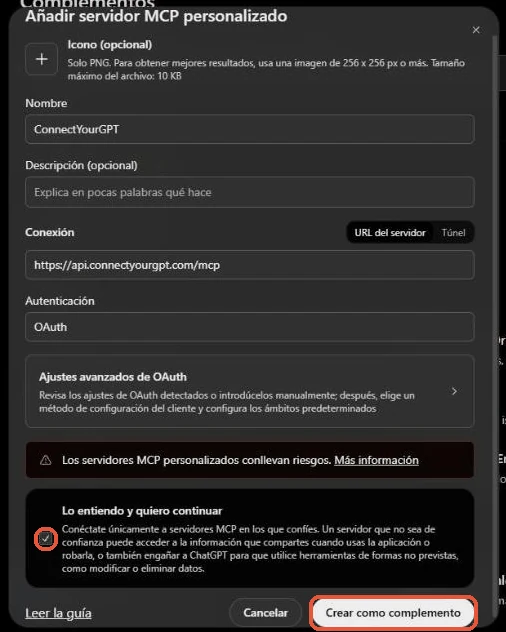
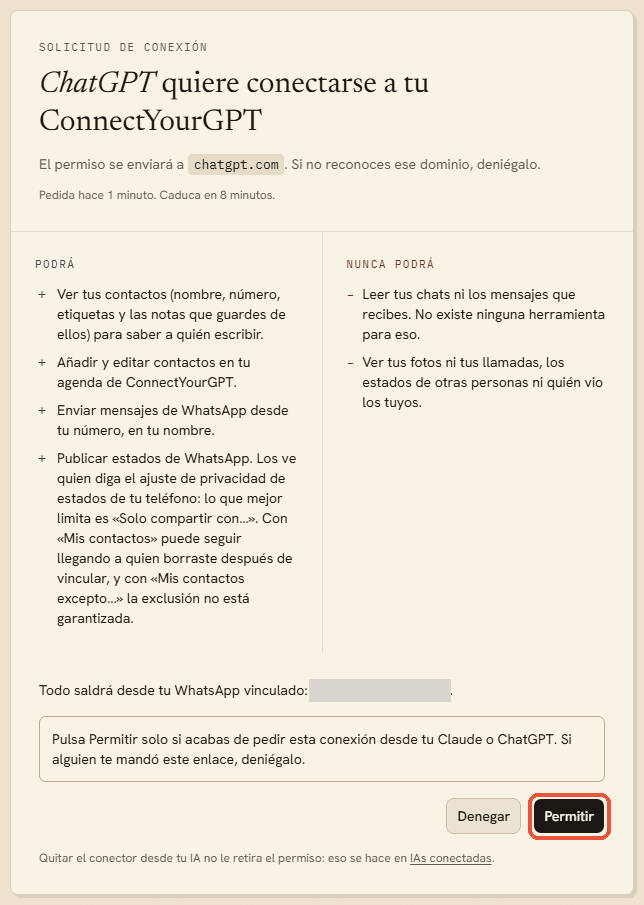
Real screenshots of ChatGPT Plus (Spanish interface): the plugins, the form with the name and address, and the permission in ConnectYourGPT.

What you get

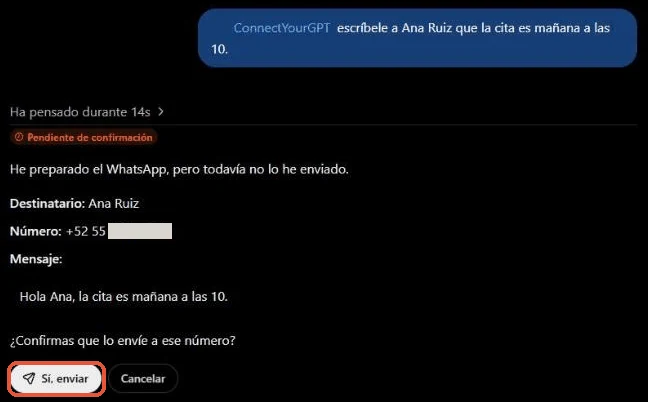
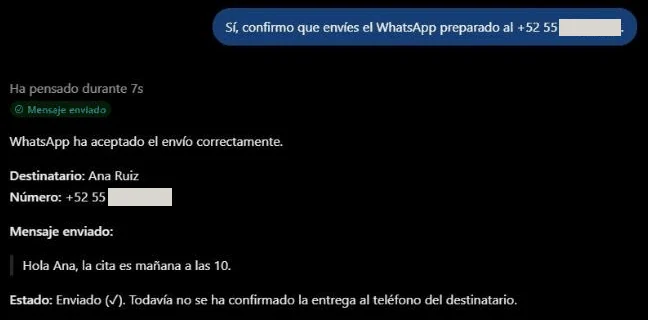
Real screenshots of ChatGPT Plus (Spanish interface): it shows you who and what, and the message goes out from your number when you confirm.

Step by step · ChatGPT Plus, on the web

Prefer to see it before doing it? Here it is screen by screen, with screenshots.

  1. Create your account and link your WhatsApp

    Go to connectyourgpt.com from a computer or tablet and create your account. Then, on your phone: WhatsApp → Linked devices → Link a device, and scan the QR code shown in the dashboard. It’s like opening WhatsApp Web.

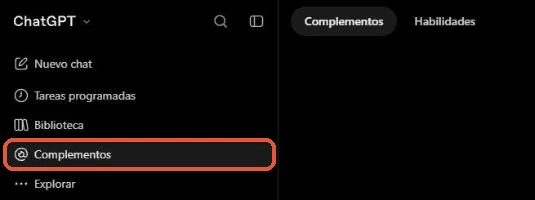
  2. Open ChatGPT’s plugins

    On chatgpt.com, open the plugins section in the sidebar (or go straight to chatgpt.com/plugins).

    We tested this with ChatGPT in Spanish. The names here are our translation: the exact wording in English may differ.

  3. Add your own server

    Click the add button at the top right and choose the option to add a custom MCP server.

  4. Type the name and paste the address

    The address goes in the server URL field. Leave authentication set to OAuth, as it comes. The icon and description are optional.

    NameConnectYourGPT
    Connector addresshttps://api.connectyourgpt.com/mcp
  5. Confirm and connect

    Tick the box saying you understand and want to continue, then click the button to create it as a plugin. On the next screen, click the button to connect ConnectYourGPT.

  6. Give ChatGPT permission

    ChatGPT takes you to the Connect­Your­GPT permission screen. Sign in with your account, see one by one the permissions it asks for (such as sending from your number) and what it never will (read your chats or the messages you receive), and click Allow.

  7. Ask for your first message

    In a chat, type @ConnectYourGPT and ask, for example: “Text Ana that the appointment is tomorrow at 10.” The connector asks ChatGPT to show you who and what and to wait for your yes: it shows you the message with its buttons to send it or cancel. Connect­Your­GPT can’t check that yes: it only asks ChatGPT for it. ChatGPT may also ask whether to allow it once or always: once is the most careful choice.

§ Before you use it

What’s worth knowing.

Other plans and mobile

We haven’t tested Free, Go, Pro, Business or Enterprise yet, or the mobile app. If you don’t see the option to add a custom MCP server, your plan may not have it.

In Claude, Connect­Your­GPT works on every plan, including the free one: Claude guide.

OpenAI may change it

ChatGPT marks these plugins as being in development (“dev mode”), and we haven’t found this option documented for Plus in its help pages. It works today, but it could go away.

Connect­Your­GPT is not an official ChatGPT app and isn’t in its directory: you add it by hand, with these steps.

What travels over this connection

The plugin’s page warns that ChatGPT may share relevant chats and memories with this app. What Connect­Your­GPT receives is what ChatGPT puts in each tool: who to look for, a contact’s details, the text of a message or a status and, if it has a file, its link and name. No tool asks for your chats or memories: something from there would only arrive if ChatGPT writes it in one of those fields. What is stored, and for how long, is in the connector documentation.

ChatGPT also warns that what this connection brings in may be used to improve its models if you have its option to improve the model for everyone turned on. Here, what the tools bring in is your WhatsApp number and your account status; your contacts’ names, numbers, tags and notes; and, for what was sent, who to, the text, the file if there is one (name, size and which site it came from), and when it was delivered and read; and for the statuses Connect­Your­GPT posted, the text, the photo if there is one (name, size and which site it came from), how they ended and how many of your address-book contacts were synced when they were prepared. If you don’t want that, turn that option off in ChatGPT.

§ If something goes wrong

What usually happens.

I can’t find the plugins section or the custom MCP server option
ChatGPT sometimes changes its menus, and your plan may not have it: we’ve only checked Plus. The address is always the same.
ChatGPT doesn’t use ConnectYourGPT
Call it in the chat: type @ConnectYourGPT before asking for the message.
ChatGPT says the subscription is not active
Go to connectyourgpt.com/billing and check your subscription.
ChatGPT says WhatsApp is not linked
Link it again at connectyourgpt.com/whatsapp with the QR code. If you removed it from your phone, you need to link it again.
ChatGPT can’t post statuses
An earlier connection doesn’t have that permission, and ChatGPT saves the list of tools when it connects. If your ChatGPT doesn’t see the status tools, uninstall it and add it again: in the plugins section, under personal, open Connect­Your­GPT, click manage and then uninstall, and add it back. The permission screen should list posting WhatsApp statuses, and the number they would go out from. That permission comes with the others: if you don’t want statuses, don’t do this. Then, under Connected AIs, disconnect the old connection.
A message shows as “queued”
That’s normal: messages go out spaced, 8 to 20 seconds apart, to protect your number. No need to repeat it.
ChatGPT says the message was accepted, not that it arrived
That’s correct: WhatsApp accepted it and hasn’t confirmed delivery yet. Don’t send it again. If you want to know whether it arrived, ask ChatGPT a little later.