ConnectYourGPT is an independent service. It is not affiliated with OpenAI, Anthropic or Meta: it works with Claude, ChatGPT Plus and WhatsApp.Independent service: not affiliated with OpenAI, Anthropic or Meta.

ConnectYourGPT / Install in Claude

Send WhatsApp from Claude, in five minutes.

As far as we know, Claude doesn’t come with a way to send WhatsApp messages from your number; with Connect­Your­GPT it can, and it can’t read your chats. You do it once, from claude.ai in your browser or from the desktop app. After that you can use it in the mobile app too: ask Claude to write to someone and the message goes out from your WhatsApp.

Connector addresshttps://api.connectyourgpt.com/mcp
Name: ConnectYourGPT
Create account

349 MXN a month · cancel anytime. Already have an account? Sign in.

Open in Claude, already filled in

Claude’s form opens with the name and the address in place, and Claude warns that an external link suggested it: that’s expected. Check they match this page and confirm. In a company Claude (Team or Enterprise), whoever manages the organization adds it.

In motion

How it connects and what you get.

How it connects

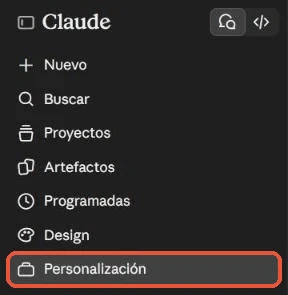
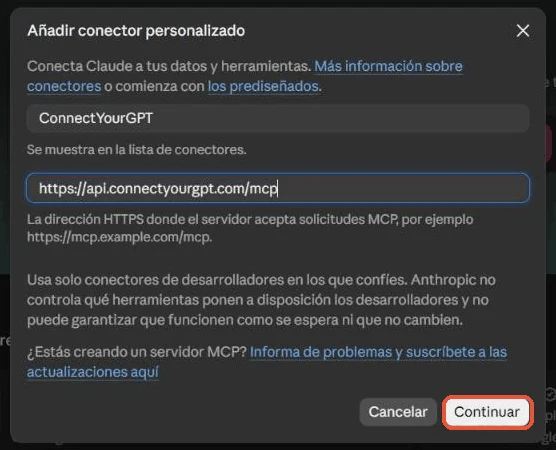
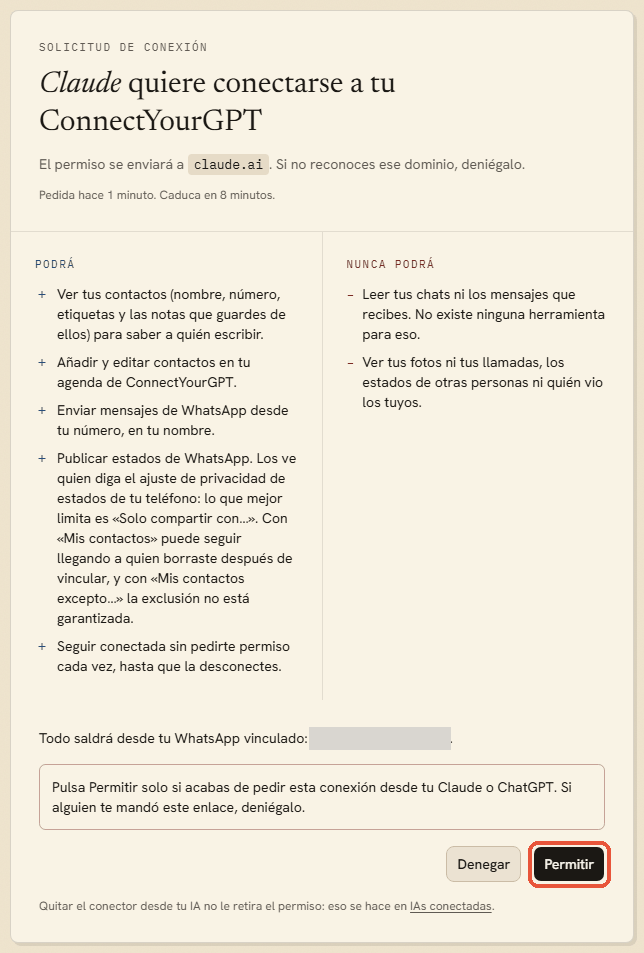
Real screenshots of Claude (Spanish interface): Customize, the form with the name and address, the permission in ConnectYourGPT and the connector in your list.

What you get

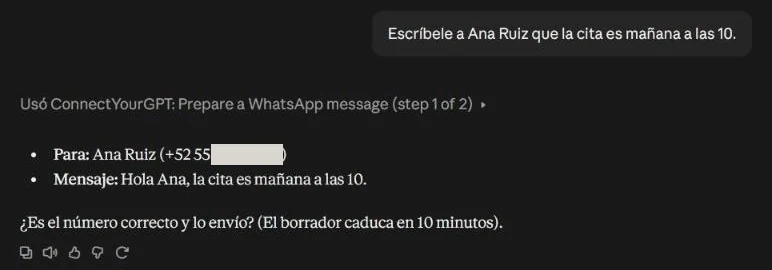
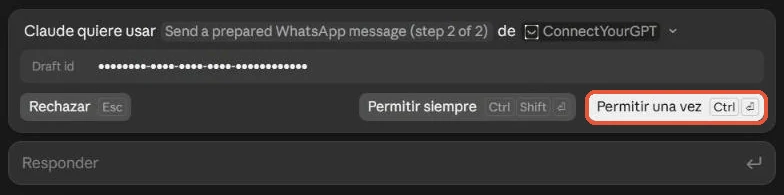
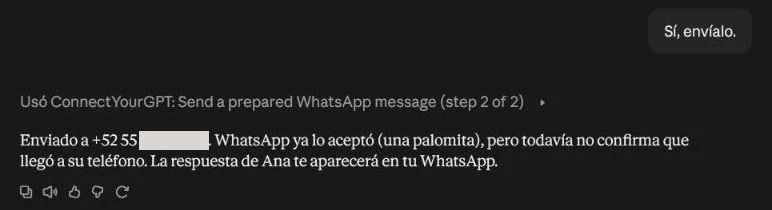
Real screenshots of Claude (Spanish interface): it shows you who and what, asks for permission, and the message goes out from your number.

Step by step · Free, Pro and Max

Prefer to see it before doing it? Here it is screen by screen, with screenshots.

  1. Create your account and link your WhatsApp

    Go to connectyourgpt.com from a computer or tablet and create your account. Then, on your phone: WhatsApp → Linked devices → Link a device, and scan the QR code shown in the dashboard. It’s like opening WhatsApp Web.

  2. Open Claude’s connectors

    In Claude, go to Customize → Connectors.

    If your Claude is in another language, the menus are translated: look for the section called connectors.

  3. Add a custom connector

    Click + Add and choose Add custom connector.

  4. Type the name and paste the address

    Fill in both fields and click Continue. The address goes in the MCP server URL field.

    NameConnectYourGPT
    Connector addresshttps://api.connectyourgpt.com/mcp
  5. Confirm and add

    Claude checks the server and selects by itself sign in now and register automatically, both labeled as detected. Leave them as they are, scroll to the end and click Add.

  6. Give Claude permission

    Claude takes you to the Connect­Your­GPT permission screen. Sign in with your account, see one by one the permissions it asks for (such as sending from your number or viewing and editing your Connect­Your­GPT address book) and what it never will (read your chats or the messages you receive), and click Allow.

  7. Ask for your first message

    For example: “Text Ana that the appointment is tomorrow at 10.” The connector asks Claude to show you who and what and to wait for your yes before sending it from your number. Connect­Your­GPT can’t check that yes: it only asks Claude for it. When it sends, Claude also asks whether to allow it once or always. Once is the most careful choice: it will ask again next time.

§ Other cases

If your Claude is different.

Claude for business (Team or Enterprise)

The connector is added by whoever manages the organization: Organization settings → Connectors → Add → Custom → Web, with the same address.

Then each person connects it with their own account in Customize → Connectors → Connect.

Free plan

It allows one custom connector. If you already have another, you’ll need to remove it to add Connect­Your­GPT.

Do you use ChatGPT?

It works on ChatGPT Plus too, with different steps: here’s its guide.

We haven’t tested ChatGPT’s other plans yet. If yours doesn’t allow it, you can create a free Claude account and use Connect­Your­GPT there.

§ If something goes wrong

What usually happens.

I can’t find “Customize” or “Connectors”
Claude sometimes renames its menus. Look for the connectors section in its settings; the address is always the same.
Claude says a connector with this URL already exists
You’ve already added it, perhaps under another name. Look for it in Customize → Connectors, in the tab with your own connectors. If it shows Connect next to it, click that and give permission.
Claude says it doesn’t have the statuses permission
An earlier connection doesn’t have it, and Claude won’t ask for it on its own. In Customize → Connectors, in the tab with your own connectors, disconnect Connect­Your­GPT and click Connect again: the permission screen should list posting WhatsApp statuses, and the number they would go out from. That permission comes with the others: if you don’t want statuses, don’t reconnect. Then open a new chat (the tools may not show up in one you already had open) and, under Connected AIs, disconnect the old connection.
Claude says the subscription is not active
Go to connectyourgpt.com/billing and check your subscription.
Claude says WhatsApp is not linked
Link it again at connectyourgpt.com/whatsapp with the QR code. If you removed it from your phone, you need to link it again.
A message shows as “queued”
That’s normal: messages go out spaced, 8 to 20 seconds apart, to protect your number. No need to repeat it.